

Key Takeaways
- Two-factor authentication (2FA) blocks most unauthorized account access even if your password is compromised.
- Authenticator apps provide stronger protection than SMS text codes, which can be intercepted.
- Most major apps — including email, banking, and social platforms — support 2FA in their security settings.
- Backup codes should be saved securely the moment you enable 2FA on any account.
- Enabling 2FA takes under five minutes per account and requires no technical background.
What you will need
Why Two-Factor Authentication Matters
Two-factor authentication (2FA) — also called two-step verification or multi-factor authentication — requires two separate proofs of identity before granting account access: typically something you know (your password) and something you have (your phone or a physical key). Even if your password is exposed in a data breach, an attacker cannot log in without that second factor.
Security researchers consistently describe 2FA as one of the highest-impact, lowest-effort steps an individual can take to protect online accounts. Passwords alone are insufficient: they're reused, guessed, phished, or leaked through no fault of the user. Pairing a password with a second factor closes most of those gaps.
For a deeper look at strengthening the first layer of your security, see our guide to passphrases and why length matters, and consider pairing 2FA with a password manager to manage unique credentials across every account.
Enable 2FA on Your Email Account First
Your primary email address is the master key to your digital life. Most password reset flows route through email, meaning anyone who accesses your inbox can take over your other accounts. Securing your email with 2FA before anything else significantly limits the damage a single compromised password can cause.
What You'll Need Before You Start
Setting up 2FA requires almost no technical knowledge, but a little preparation makes the process smooth across multiple accounts.
What you will need
Authenticator App (TOTP-compatible)
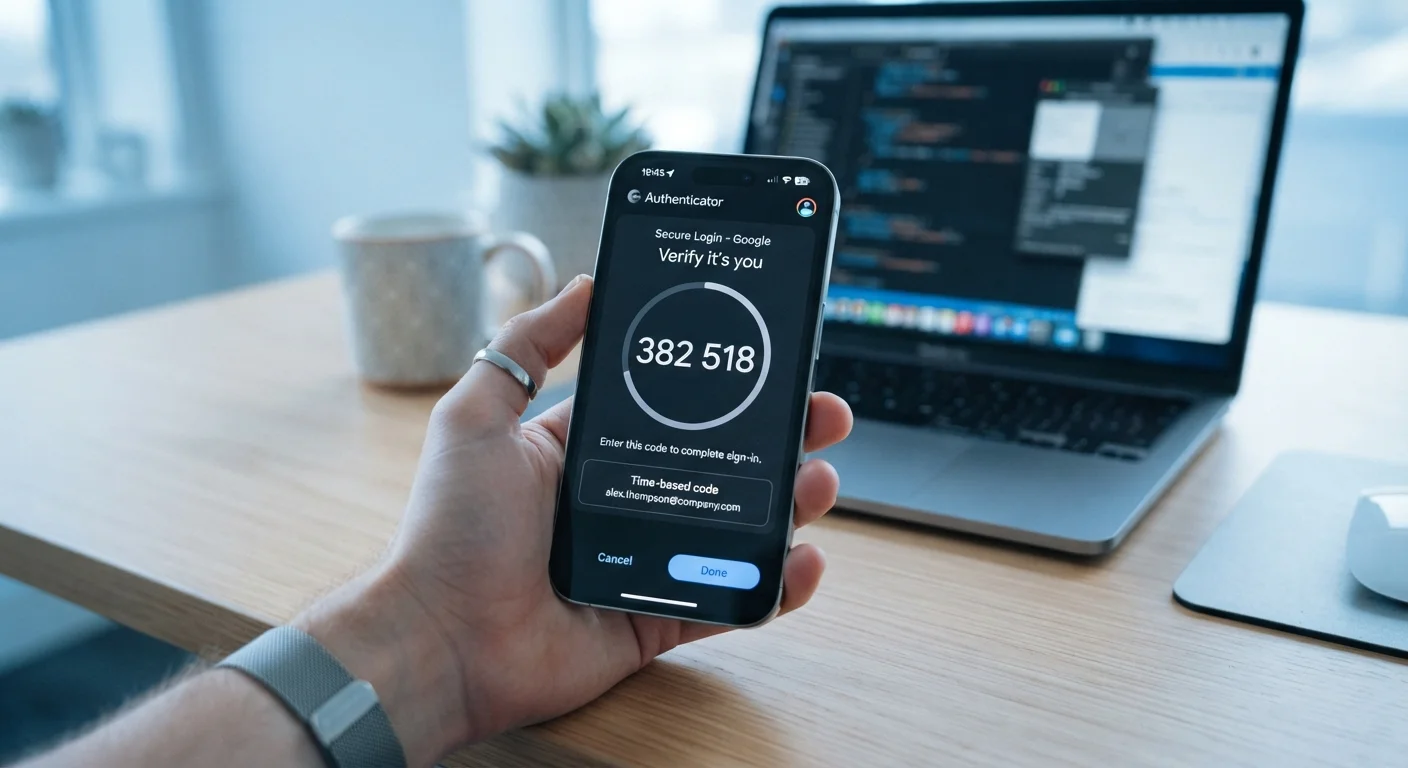
Generates time-based one-time passcodes (TOTP) that rotate every 30 seconds, offering stronger 2FA than SMS.
SMS-capable phone
Receives one-time verification codes via text message as a fallback or primary 2FA method.
Secure backup code storage
Stores the one-time recovery codes provided during 2FA setup, used if you lose device access.
Once those are in place, you can work through the steps below for each account in turn. Expect to spend about five minutes per account. For broader account hygiene, our privacy settings walkthrough covers additional controls worth reviewing at the same time.
Step-by-Step: Enabling 2FA on Your Accounts
The process below applies to the vast majority of consumer apps and platforms. While the exact menu labels vary, the underlying steps are nearly identical whether you're securing an email account, a social media profile, or a financial app.
Choose your preferred 2FA method
Before touching any account settings, decide which second-factor method you'll use. The three most common are:
- Authenticator app (TOTP): An app on your phone generates a six-digit code that refreshes every 30 seconds. This is the most widely recommended method.
- SMS text message: A code is sent to your phone number. Convenient, but more vulnerable to SIM-swapping attacks.
- Hardware security key: A physical USB or NFC device. Extremely secure; best suited for high-value accounts.
For most people, an authenticator app strikes the best balance of security and convenience.
Navigate to security settings in each app
Every major platform buries 2FA slightly differently, but the path is consistent in principle:
- Open the app or its website and go to your account or profile menu.
- Look for a section labeled Security, Privacy & Security, or Sign-In Options.
- Find the option for Two-Factor Authentication, Two-Step Verification, or Multi-Factor Authentication — these terms all refer to the same concept.
For email accounts (Gmail, Outlook), this is typically found under Account Settings > Security. For social platforms, it's usually under Settings > Security and Login.
Link your authenticator app using the QR code
Once you select the authenticator app option, the platform will display a QR code on screen.
- Open your authenticator app and select the option to add a new account (usually a + button).
- Choose Scan QR code and point your phone's camera at the code on your screen.
- The account will appear in your authenticator app with a rotating six-digit code.
- Enter that code into the website's confirmation field to verify the link worked correctly.
Save your backup codes immediately
After confirming your authenticator link, most platforms generate a set of single-use backup codes — typically eight to ten codes. These are critical: if you lose your phone, they're your only way back into your account.
- Download or copy all backup codes as soon as they're shown.
- Store them somewhere offline and physically secure — a printed sheet in a locked drawer is a practical choice.
- Do not store backup codes in the same app or device you use as your second factor.
Test the login flow before logging out
Before closing the session where you set up 2FA, verify the full login sequence works:
- Open a private/incognito browser window or a second device.
- Sign in with your username and password.
- When prompted for the second factor, open your authenticator app and enter the current code.
- Confirm you reach your account successfully.
This test takes under a minute and confirms everything is working before you rely on it.
Authenticator Apps Work Without Cell Service
Because TOTP codes are generated locally on your device using a time-based algorithm, your authenticator app works even when you have no cell signal or internet connection. This makes it more reliable than SMS codes in areas with poor reception.
Troubleshooting and Common Situations
A few scenarios come up regularly when setting up 2FA for the first time:
The QR code won't scan
Ensure your phone camera is steady and the code is fully visible on screen. If scanning continues to fail, use the manual key entry option — every platform provides one.
You've lost access to your authenticator app
Use one of your saved backup codes to log in. After regaining access, go to the security settings and set up 2FA again with your current device.
An app doesn't appear to support 2FA
Check the platform's full website rather than its mobile app — some platforms only expose security settings through a browser. If 2FA genuinely isn't available, prioritize using a strong, unique password for that account.
SMS-Based 2FA Has Known Weaknesses
Text message codes can be intercepted through SIM-swapping — a technique where an attacker convinces your carrier to transfer your number to their device. For accounts holding sensitive financial or personal data, an authenticator app or hardware key is a meaningfully more secure choice. SMS 2FA is still better than no 2FA, but treat it as a starting point rather than an endpoint.
If you're setting up a new device and need to transfer your authenticator accounts, most authenticator apps now include an account transfer or export feature — consult the app's documentation before deleting it from an old device. You may also find our new device setup guide useful when switching hardware.