

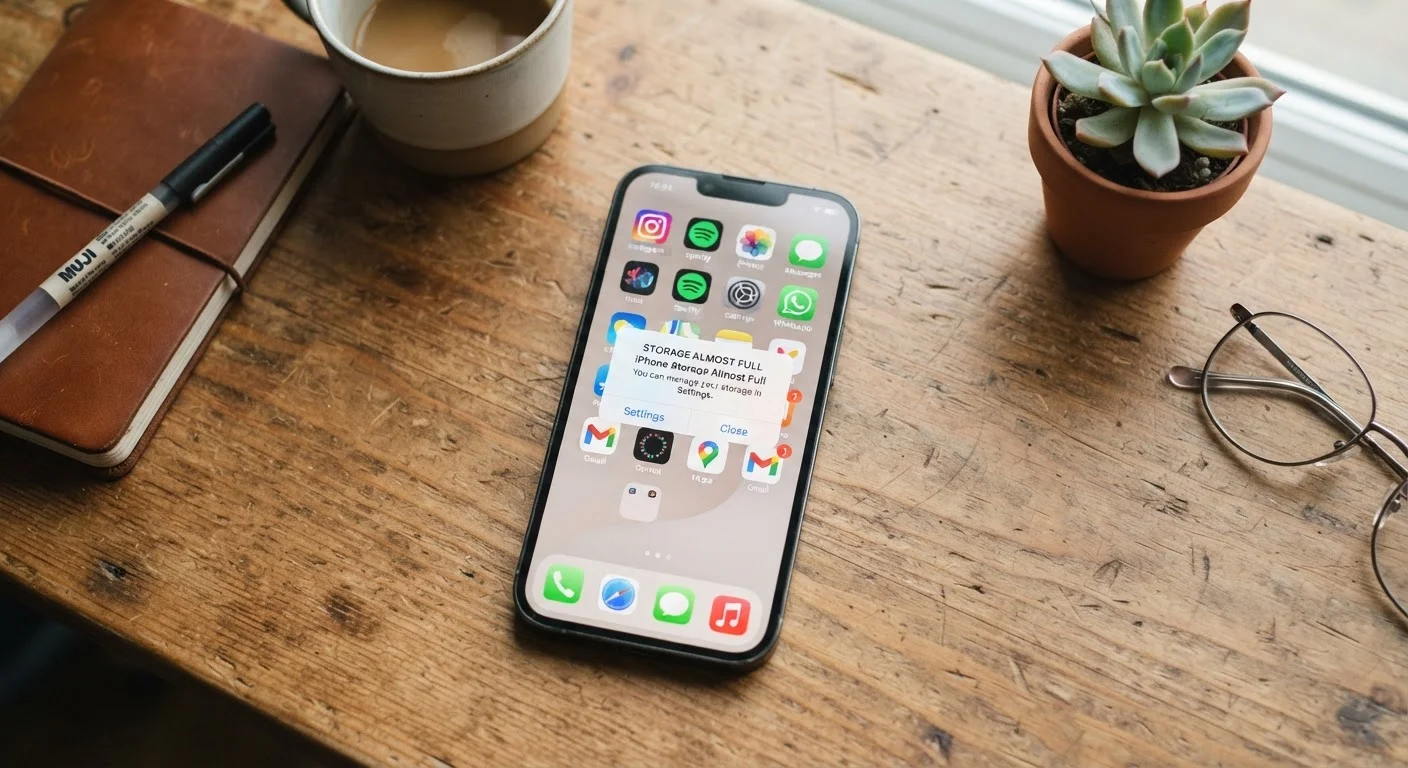
Key Takeaways
- Photos, videos, and offline media are typically the largest consumers of phone storage.
- App cache accumulates silently over time and can be cleared without deleting the app itself.
- Messaging apps often store gigabytes of media that users rarely notice or review.
- Cloud backup services can free on-device space without permanently deleting your files.
- Regularly auditing storage prevents performance slowdowns caused by a nearly full drive.
What you will need
Why Storage Fills Up Faster Than You Expect
Modern phones are capable cameras, streaming devices, and communication hubs all at once — and each of those functions generates or retains data. A single minute of 4K video can consume over 400 MB. A year of group chat activity can quietly stockpile gigabytes of images and voice messages. Add in app cache, software updates, and system files, and a 128 GB device can feel full in less time than most people anticipate.
Storage pressure also has a real performance cost. When a phone's internal storage is nearly full, the operating system has less room to write temporary files it needs to run smoothly. This can contribute to sluggishness, app instability, and longer load times — symptoms that are sometimes misread as a hardware problem. If you've noticed your phone feeling slow, storage may be a contributing factor worth investigating alongside battery health. The habits that extend device lifespan often start with keeping storage and heat in check.
Understanding what is consuming storage — rather than blindly deleting — means you can recover space without losing anything that matters.
What you will need
What You'll Need Before Starting
Clearing storage doesn't require any special software. The tools built into your phone handle most of the work. For larger cleanups involving cloud backup, a stable Wi-Fi connection and a few extra minutes are the main prerequisites.
Built-in Storage Analyzer (iOS or Android Settings)
Shows a categorized breakdown of what is consuming on-device storage — no third-party app required.
Cloud Backup Service (e.g., iCloud, Google Photos, or similar)
Stores photos and videos remotely so originals can be removed from the device without permanent loss.
Computer or External Drive
Provides an offline backup destination before deleting large files from the phone.
If you're considering moving files to the cloud rather than deleting them outright, understanding how cloud storage actually works can help you make a more informed decision about which service fits your needs.
Step-by-Step: Reclaiming Your Storage
Don't Delete Before You Back Up
Before removing photos, videos, or app data, confirm those files are safely backed up to a cloud service or your computer. Deletion on most phones is permanent once the recycle or recently deleted folder is emptied. Take 60 seconds to verify your backup status before you start clearing space.
Open Your Phone's Storage Breakdown
On iOS, go to Settings → General → iPhone Storage. On Android, go to Settings → Storage (the exact path varies slightly by manufacturer). Both views display a color-coded bar showing how storage is divided across categories: apps, photos, system data, and more.
Take a moment to read the full list before deleting anything. The largest categories are almost always the most productive places to start.
Audit Your Photo and Video Library
Photos and videos are consistently the top storage consumers on most devices. High-resolution video in particular can reach hundreds of megabytes per minute of footage. Review your library for:
- Duplicate shots and burst sequences
- Screenshots you no longer need
- Large video files that have already been shared or archived
If you use a cloud photo service with automatic backup enabled, you can delete local copies of already-synced images. On iOS, enabling Optimize iPhone Storage under Settings → [Your Name] → iCloud → Photos automatically offloads full-resolution originals to iCloud while keeping smaller previews on the device.
Clear App Cache and Review App Sizes
Apps accumulate temporary files — called cache — to speed up repeated tasks like loading images or search results. This cache is safe to clear and rebuilds itself as you use the app.
On Android, navigate to Settings → Apps → [App Name] → Storage → Clear Cache for any app you suspect is bloated. On iOS, the system manages cache automatically, but you can offload an app (Settings → General → iPhone Storage → [App Name] → Offload App) to remove the app binary while retaining its data — useful for large apps you use infrequently.
Pay particular attention to streaming apps (music, video, podcasts) that may have downloaded content for offline use. That offline media is stored in full on your device.
Check Messaging Apps for Hidden Media
Messaging apps are one of the most overlooked storage culprits. Every photo, video, voice note, and document sent or received in a conversation is saved locally by default. Group chats in particular accumulate gigabytes over time without any single moment feeling like a large transfer.
Most messaging apps include an in-app storage manager. Look under the app's Settings → Data and Storage (or similar) to review and delete stored media. You can often remove media by conversation, freeing the most space with the fewest deletions.
Remove Apps You No Longer Use
Unused apps take up installation space, and many continue accumulating data in the background. Sort your installed apps by size in the storage breakdown view to identify the heaviest offenders.
Before removing any app, it is worth a quick check — especially for apps tied to subscriptions or accounts that store data exclusively within them. See the pre-deletion checklist for the key things to verify before uninstalling.
Set a Monthly Storage Check Reminder
A quick five-minute review each month catches runaway apps and forgotten downloads before they trigger the dreaded 'Storage Full' alert. Both iOS and Android surface a storage breakdown in Settings — making it easy to spot what grew since last time.
Keeping Storage Under Control Going Forward
The most effective strategy is a light, recurring habit rather than a major cleanup every few months. Allowing storage to reach a critical level repeatedly can stress the device and interrupt your workflow at inconvenient moments.
Clearing App Data Is Not the Same as Clearing Cache
On Android, 'Clear Cache' removes temporary files and is generally safe. 'Clear Data' resets the app to a fresh install state — you will lose saved preferences, login sessions, and any locally stored content. Use 'Clear Data' only as a last resort and only when you understand what will be erased.
For ongoing maintenance, consider adjusting app settings to limit automatic downloads. Most streaming and messaging apps allow you to restrict which media types download automatically and for how long offline content is retained. These settings can meaningfully slow the rate at which storage fills between cleanups.
If your apps have been behaving erratically alongside storage issues, low storage can occasionally be a contributing factor. The guide to diagnosing app crashes walks through the most common causes on both iOS and Android.