

| Platforms covered | iOS (iPhone/iPad) and Android |
| Permission management location (iOS) | Settings → Privacy & Security |
| Permission management location (Android) | Settings → Apps → [App Name] → Permissions |
| Riskiest permission category | Location (especially 'Always On' / Background) (General industry consensus among security researchers) |
| Can you revoke a permission later? | Yes — at any time through device Settings |
| Do apps notify you when revoked? | No — the app simply loses access silently |
Why Permissions Matter More Than Most People Realize
Every app you install is essentially asking for a set of keys to different parts of your phone. Permissions are the gatekeeping system — built into iOS and Android — that puts you in control of which keys each app gets. When you tap Allow without reading the prompt, you may be handing over more access than the app genuinely needs.
Understanding what each permission category actually does is the most practical first step toward better phone privacy. It doesn't require technical expertise — just a clear explanation of what each one unlocks. For a broader look at privacy controls across your accounts, see Privacy Settings Worth Actually Checking on Your Accounts.
| Platforms covered | iOS (iPhone/iPad) and Android |
| Permission management location (iOS) | Settings → Privacy & Security |
| Permission management location (Android) | Settings → Apps → [App Name] → Permissions |
| Riskiest permission category | Location (especially 'Always On' / Background) (General industry consensus among security researchers) |
| Can you revoke a permission later? | Yes — at any time through device Settings |
| Do apps notify you when revoked? | No — the app simply loses access silently |
A Plain-Language Guide to the Most Common Permissions
Below is a breakdown of the permissions you'll encounter most often, what they actually enable, and when granting them makes reasonable sense.
Location
Gives the app access to where your device is physically located. Navigation and local-search apps have clear, functional reasons to need this. Social media apps, games, and utilities generally do not — or can work with approximate location instead of precise GPS. Be especially cautious about granting Always (background) location access; choose While Using the App wherever possible.
Camera
Allows the app to activate your device's camera and capture photos or video. Video calling and QR-code scanner apps legitimately need camera access. A flashlight or calculator app asking for camera access is a red flag worth investigating.
Microphone
Enables audio capture through your microphone. Voice assistants, transcription tools, and calling apps have clear justification. Be skeptical when a game or retail app requests microphone access without an obvious audio feature.
Contacts
Reads the names, phone numbers, and emails stored in your address book. Messaging apps use this to suggest people you know. However, many apps use contacts data for advertising profiling or to map your social graph — purposes that go well beyond their stated function.
Storage / Photos & Media
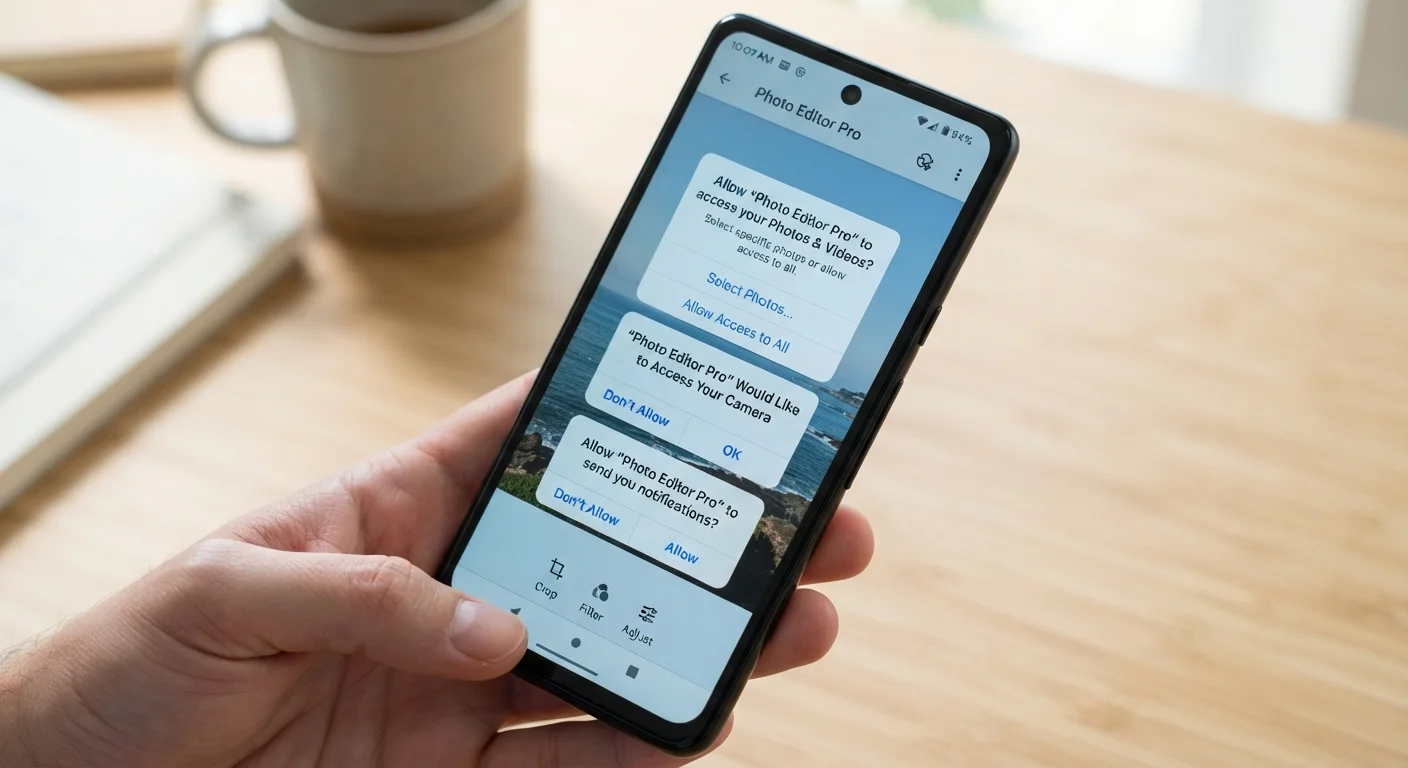
Grants access to files, photos, or videos saved on your device. Photo editors and cloud backup apps need this. On Android, storage permission can be broad; on iOS, apps can be limited to only the specific photos you select, which is the more privacy-friendly option.
Notifications
Allows the app to send alerts to your lock screen and notification shade. This doesn't expose your data, but excessive notifications can be disruptive. Granting this is generally low-risk, but it's worth reviewing which apps you've approved.
Bluetooth & Nearby Devices
Enables connection to Bluetooth accessories and, on newer OS versions, can also be used to detect nearby devices for location purposes even without GPS. Fitness trackers and wireless speaker apps need Bluetooth; be more cautious when apps without a hardware component request it.
Denying a Permission Doesn't Break Most Apps
Refusing a permission typically limits one feature, not the entire app. A photo-editing app denied storage access just can't open files from your gallery — it won't crash or stop working altogether. Test by denying and see what actually breaks before assuming you must grant access.
Biometric Data (Face ID / Fingerprint)
Allows the app to use device biometrics for authentication. This is generally handled by the operating system itself — the app receives only a pass/fail result, not your actual biometric data. This is considered a low-risk permission for authentication purposes.
App Permission
A system-level gate that determines whether an app can access a specific device feature or data category, such as the camera, microphone, or contacts. Users grant or deny each permission individually.
Runtime Permission
A permission request that appears as a pop-up dialog while you are actively using an app, as opposed to one granted silently at install time. Both Android and iOS primarily use runtime permissions for sensitive categories.
Precise vs. Approximate Location
Precise location uses GPS to pinpoint your exact coordinates; approximate location narrows you to a general neighborhood or area. Many apps function adequately with approximate location only.
Background Access
The ability of an app to use a permission — most commonly location — even when the app is not open on screen. Background access has a greater privacy impact than foreground-only access.
Microphone Permission
Grants an app the ability to capture audio through the device's built-in or connected microphone. Required for voice calls, voice search, and audio recording.
Contacts Permission
Allows an app to read, and sometimes write, your stored phone contacts. Messaging and calling apps legitimately need this; many other apps do not.
How to Review and Revoke Permissions at Any Time
You are never locked in to a permission decision. Both iOS and Android let you audit and adjust permissions for every installed app through the device Settings menu. On iOS, navigate to Settings → Privacy & Security and browse by category (e.g., Location Services, Microphone) to see every app that has requested access and its current status. On Android, go to Settings → Apps, select any app, and tap Permissions to review and change them individually.
A useful habit: after installing a new app, open its permissions in Settings before using it. Remove anything that doesn't match the app's obvious purpose. If an app stops working after you remove a permission, you can always re-grant it — but you'll at least have made a conscious choice.
For a more comprehensive privacy reset — especially on a new or recently reset device — the checklist in Before You Set Up a New Device covers permissions alongside other default settings worth locking down. And if you want to understand your broader rights over the data apps collect, Your Rights Over Your Personal Data offers a plain-language overview of what data protection laws generally provide.